 AI Task Manager
Teams
A team is an ordered pipeline of agents. Instead of one agent doing everything, a task runs through each member in turn. Each member has a role and its own instructions, and gets the previous member's output as its starting point.
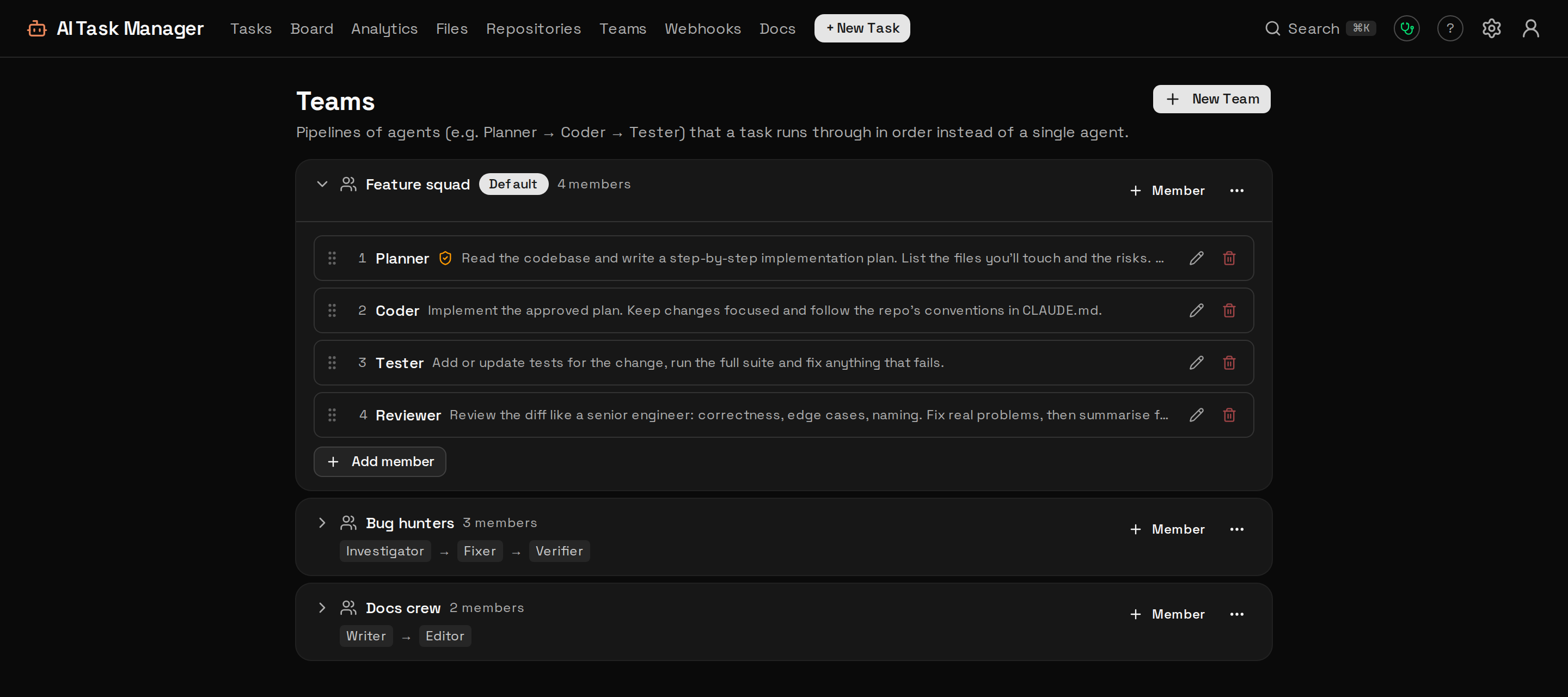
Create a team
Open Teams and click New Team. Add members in the order they should run, and give each one instructions, for example:
| Member | Instructions |
|---|---|
| Planner | Read the codebase and write a step-by-step plan. List the files you'll touch and the risks. Don't write code. |
| Coder | Implement the approved plan. Follow the repo's conventions in CLAUDE.md. |
| Tester | Add or update tests, run the full suite and fix anything that fails. |
| Reviewer | Review the diff for correctness and edge cases. Fix real problems, then summarise for the PR. |
Drag members to reorder them. Mark one team as the default so it's preselected on the new-task form.
Run a task with a team
On the new-task form, switch on Use a team and pick one. A saved repository can also have a default team, so every task on that repo uses it unless you switch it off. Tasks created through the REST API, MCP, Slack, webhooks or email inherit it too.
The task page shows a Team progress tracker: who has finished, who is working, how long each stage took and how many tokens it used. Every line in the activity log is tagged with the member that wrote it, and you can filter the log to one member.
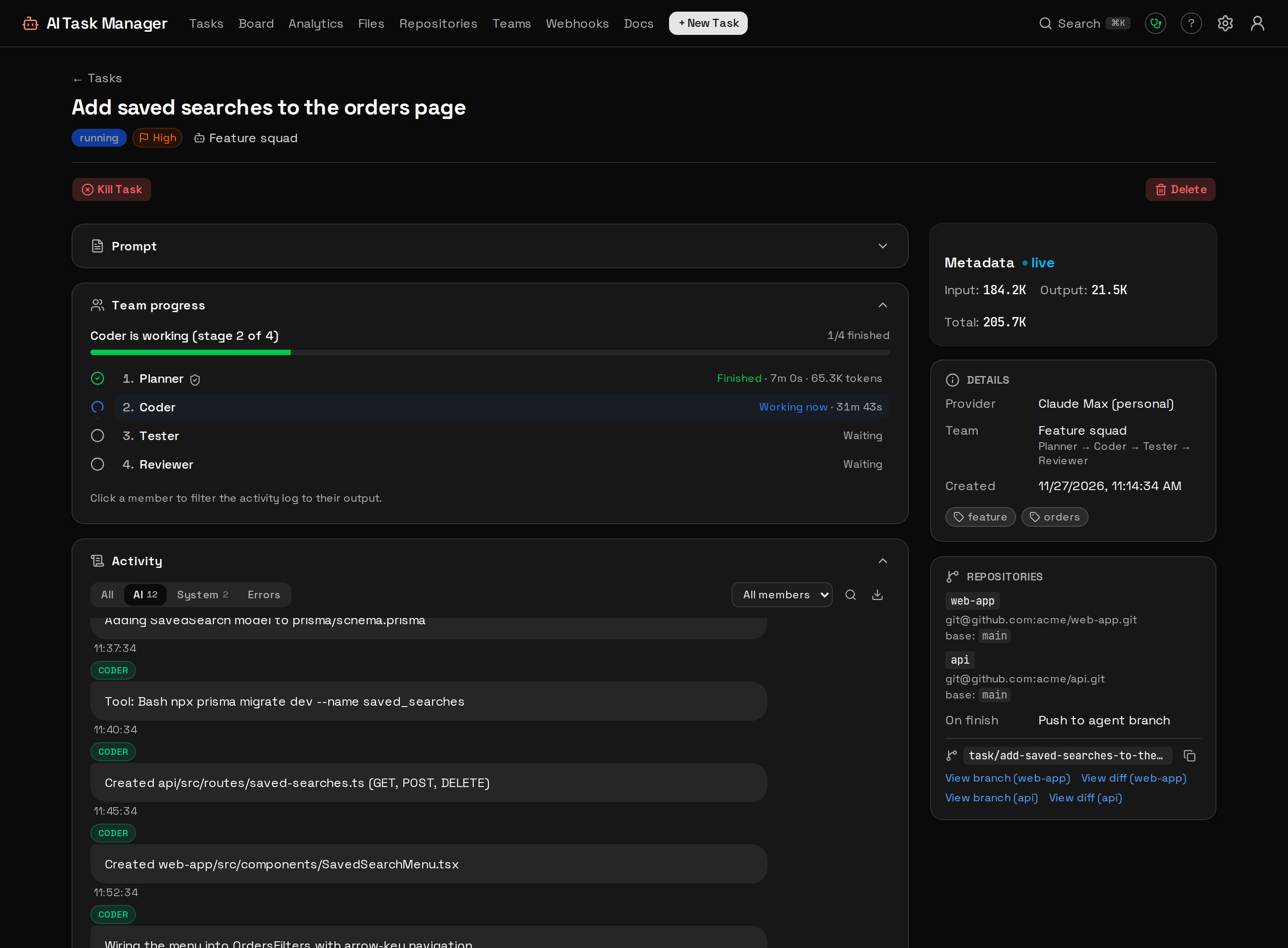
Approval gates
Turn on Wait for my approval before the next member for a member, typically the Planner. When it finishes, the pipeline stops and the task waits in In Progress. Nothing is committed or pushed yet.
The tracker shows that member's output with two buttons:
- Approve & continue: the next member starts, with the approved output and any notes you added.
- Request changes: the same member runs again, with your feedback and its previous attempt.
You can also approve from an MCP client with the approve_team_stage tool.
Good to know
- A failed stage stops the pipeline and the log names the stage. Later members don't run on bad input.
- The roster is read when the task runs, so editing a team affects its next run, including tasks already queued.
- Every member runs on the task's connection, chosen the usual way. See Connections.
- Git handling (branch, commit, push, PR) is the same as for single-agent tasks and happens once, after the last member.